
Guide
Clean Your TV Cannot Find the TV? Fix Wi-Fi and Network Debugging
Most Clean Your TV connection problems are Wi-Fi or network debugging problems: same network first, debugging setting second, trust prompt third. Work them in that order.
 By Grace Liu, TV Utility Reviewer
CONTENTS On this page
Check the Wi-Fi First
Both devices must be on the same Wi-Fi network. A phone on mobile data will not find the TV, and a phone on a guest network will not find a TV on the main network, even when both networks come from the same router. Check the network name on both devices before you change any setting.
If you are ready to start, the download Clean Your TV page links only to the developer official page, where the app is obtained. Once the app is on the phone, the Wi-Fi check is the first fix to try, because it solves the most discovery failures with the least effort.
The Network Debugging Setting
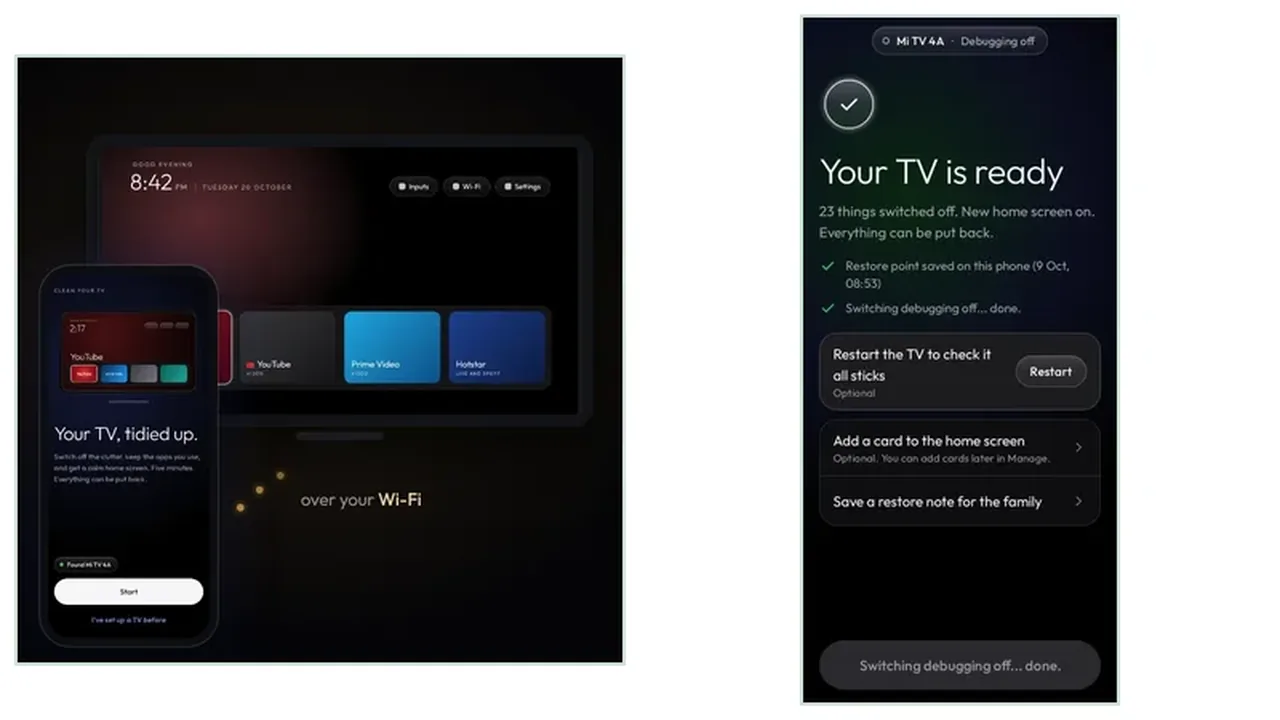
Network debugging must be switched on in the TV settings, and the app shows you where, step by step. Follow that path exactly, because TV menus vary by brand and the setting can hide under developer options on some sets. Switch it on, let the app try again, and remember that the app switches it off again at the end unless you keep it on.
If the setting was already on and the TV still does not appear, switch debugging off and on again, then restart the app search. That reset clears the stale state that blocks most second attempts, and the phone setup guide shows the full connect order around it.
Trust Prompt Problems
If the TV appears but the trust prompt never shows, or it was dismissed by mistake, reset the debugging setting as above and let the app try once more. When the prompt does appear, tick Always allow with the remote, then choose OK, so the approval lasts for the whole job.
If the prompt appears on the wrong TV, stop. In a home with two Android TVs, check the TV name on the prompt screen before you approve. Approving the wrong TV is harmless, because nothing changes until the analyse plan is confirmed, but it wastes a run, and the analyse guide explains why that confirmation pause matters.
Wi-Fi Fixes in Short
Same network, debugging on, trust prompt approved with Always allow. Work those three in order, reset debugging once if a step stalls, and only then look for a deeper problem. Most connection failures end at step one or two.