
What Is Clean Your TV?
Clean Your TV is a free open source community app for Android phones that tidies an Android TV or Google TV over Wi-Fi. It is built by udhaykumarbala and carries the same launcher and the same community TV lists as Clean Your TV itself. There is no laptop, no coding, and no cable in the flow: the phone does the work, and the TV stays on the sofa where it belongs.
The idea is simple. Over time a TV collects adverts, tracking, apps nobody asked for, and brand extras. Those extras slow the home screen, crowd the apps row, and make a simple evening of watching TV feel cluttered. Clean Your TV reads what is on the TV, shows you a plan, and only then switches the clutter off. Nothing is uninstalled, so everything can come back.
This site is a guide to that app. It explains the three steps, what the app keeps, what you need before you start, and how to undo a change. It does not host the app. The app is obtained from the developer official page, which is the only download destination linked here.
How Clean Your TV Works
The whole job takes about five minutes and runs in three steps. First, connect. The app finds your TV on the Wi-Fi and shows you how to let the phone in with the remote. On the TV you tick Always allow when it asks whether to trust this phone, then choose OK. That step takes about a minute.
Second, analyse. Nothing changes yet. The app reads what is on the TV and shows the plan: what goes off and what stays. In the official example the plan found 22 things to switch off, grouped into adverts, tracking, apps nobody asked for, and brand extras, with everything it keeps listed below the plan. You read the plan before you tap anything.
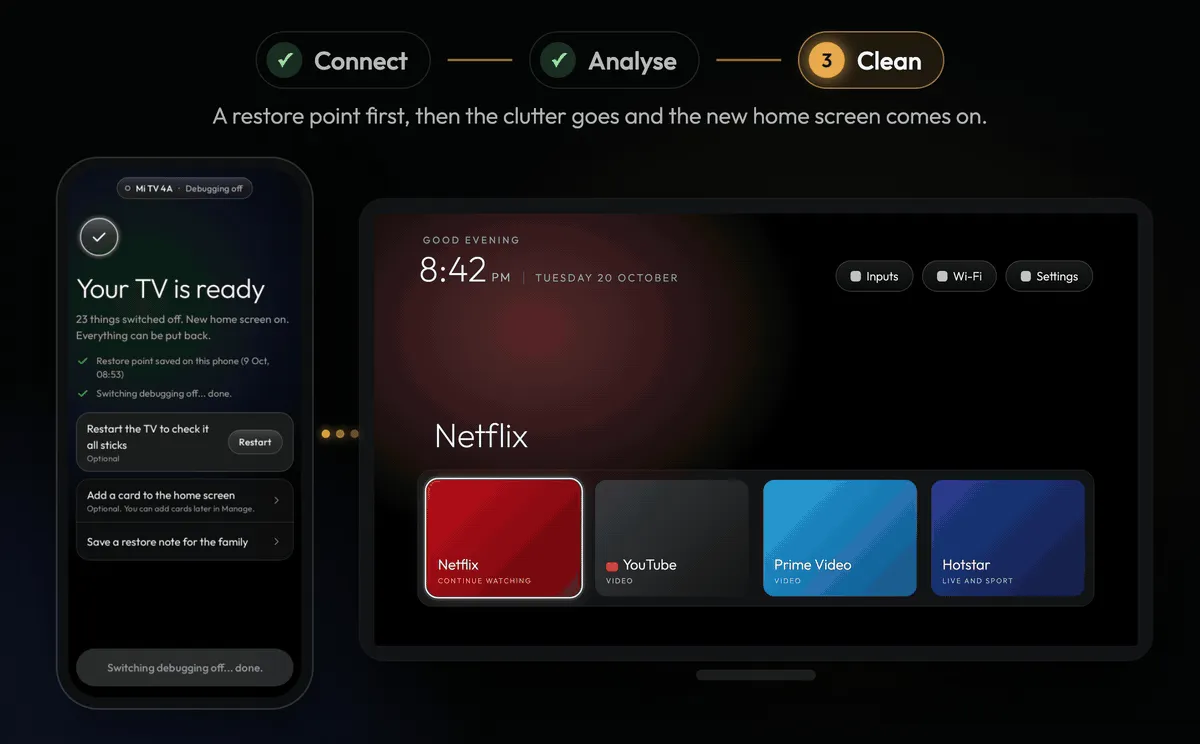
Third, clean. A restore point is saved on your phone before the first change. Then you tap Make it clean. The clutter goes and the new home screen comes on. In the official example the result was 23 things switched off, a new home screen on, and everything ready to be put back. You can come back any time to put an app back, check for leftovers after a TV update, change the dock or the look, or undo everything.
Clean Your TV Screenshots
Every image below is a real image from the developer official page. No artwork, no mockup, and no invented phone screen is used here. It starts with the official start view, then the three steps in order, and ends with the official demo view of the finished, tidied TV.
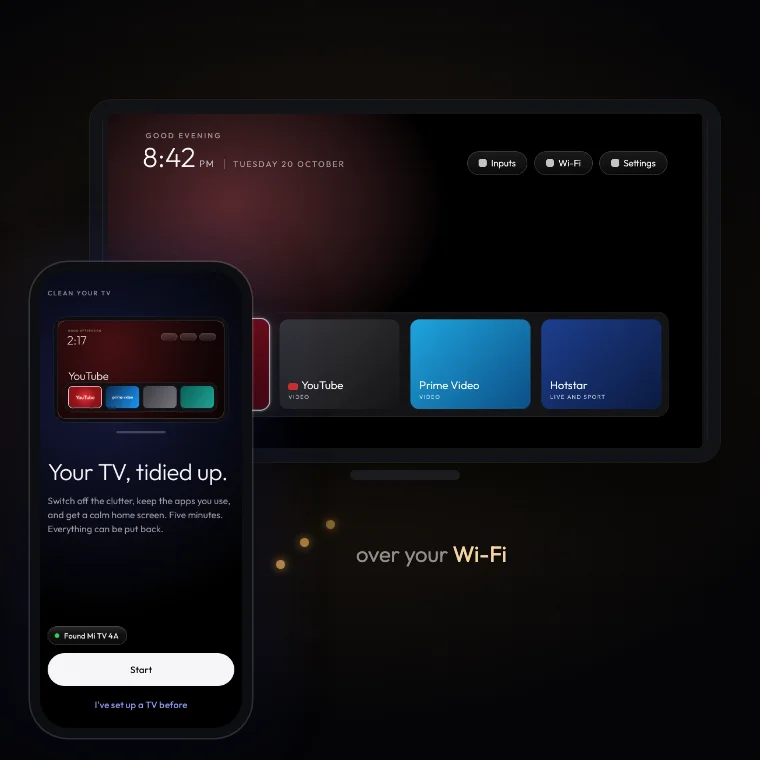
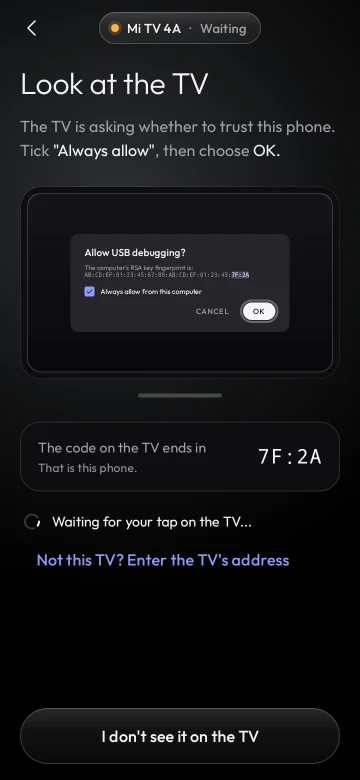
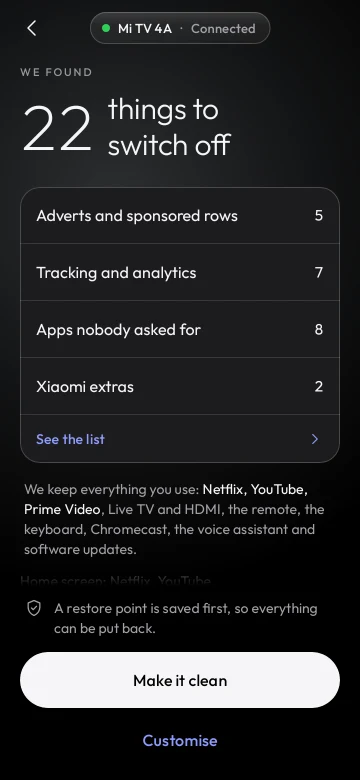
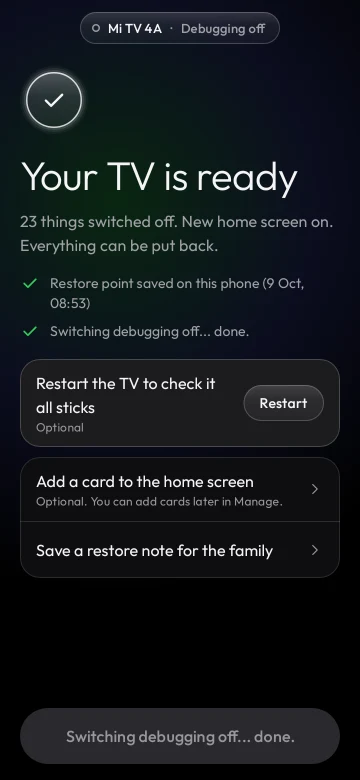
What Clean Your TV Keeps
A cleaner that deletes the wrong thing is worse than clutter, so the keeps list matters as much as the clean list. Clean Your TV keeps your apps: Netflix, YouTube, Prime Video, live TV, and the HDMI inputs. It keeps the basics too: Wi-Fi, the remote, the keyboard, and the parts Android needs to run. The app never touches those basics.
Casting, the voice assistant, and software updates stay on as well, unless you choose to switch them off. That choice stays yours. If a feature you use every day is on the keeps list, the clean step leaves it alone, and the plan screen shows you that before you confirm.
What You Need
You need an Android phone with Android 9 or newer and a screen lock. You need an Android TV or Google TV on the same Wi-Fi as the phone. Network debugging must be switched on in the TV settings, and the app shows you where, step by step, then switches it off again at the end unless you keep it on.
Clean Your TV is not for Samsung, LG, or Roku TVs. Those TVs do not run Android, so the app cannot work on them. If your TV runs Android TV or Google TV, you are in the right place. If it does not, no phone app of this kind can clean it, and that is worth knowing before you spend time on setup.
Safe by Design
The safety design is the reason this app is worth recommending. Plan first: nothing runs until you have seen the plan and tapped to confirm it. Restore point: a restore point is saved on your phone before the first change, so there is a known good state to return to.
Nothing is uninstalled. Apps are only switched off, so every one can come back, one at a time or all at once. Undo anything, any time: one app or everything. And there is a watchdog on the TV that puts its own home screen back if the phone does not confirm within 150 seconds. That watchdog is the quiet safety net behind the whole flow.
There are no accounts, no analytics, and no ads in the app, and the privacy policy on the official page says so plainly. For a tool that touches a shared family TV, that combination of plan first, restore point, and undo is the standard other cleaners should be judged against.
How to Install Clean Your TV on Android
Start on the download page of this site and follow the single official link to the developer official page. Get the app from there and install it on your Android phone, not on the TV. The phone is the remote control for the whole job, and the TV only needs to be on the same Wi-Fi.
Open the app on the phone and follow the on screen steps. Put the TV and the phone on the same Wi-Fi network, switch on network debugging in the TV settings when the app shows you where, and approve the trust prompt on the TV with the remote, ticking Always allow. Then read the analyse plan, check the keeps list, and only then tap Make it clean.
After the clean, check the new home screen and try the apps you use most. If anything is missing, put it back from inside the app. If you change your mind about the whole clean, undo everything and the TV returns to its earlier state, restore point and all.
Troubleshooting
If the phone cannot find the TV, check the Wi-Fi first. Both devices must be on the same network, not one on a guest network and one on the main network, and not one on mobile data. Restarting the app and trying the search again fixes most discovery problems.
If the TV does not show the trust prompt, check that network debugging is switched on in the TV settings, and follow the step by step path the app shows. If the prompt was dismissed by mistake, switch debugging off and on again and let the app try once more.
If an app you use is missing after a clean, do not panic and do not reset the TV. Open Clean Your TV on the phone, find the app in the switched off list, and switch it back on. If several things feel wrong, undo everything and start again from the plan screen, reading each group before you confirm.
Technical Details
Clean Your TV is a phone app, not a TV app. It runs on Android phones with Android 9 or newer and a screen lock, and it works with Android TV and Google TV over Wi-Fi. It is free and open source under the MIT licence, it carries no accounts, no analytics, and no ads, and the same launcher and community TV lists as Clean Your TV are included.
The connection uses network debugging on the TV, which the app switches off again at the end unless you keep it on. A watchdog on the TV restores its own home screen if the phone does not confirm within 150 seconds. Changes are switches, not uninstalls, which is why undo is always possible.
Old Versions
This site does not list or link old builds of Clean Your TV, and it does not keep a hosted archive of earlier releases. The current build is the one published on the developer official page, and that page is the only place to get it. Listing old builds here would risk sending readers to stale or mismatched files, which is exactly what a tidy guide should not do.
If you need an earlier behaviour, check the app project history linked from the official page, and read what changed before you switch builds. For most readers, the current official build is the right choice, because it carries the latest community TV lists and the latest safety behaviour.
Alternatives to Consider
If Clean Your TV does not fit your TV, the honest alternatives are the built in tools on the TV itself. Android TV and Google TV settings let you disable apps you do not use, rearrange the home screen, and clear the cache of a misbehaving app. Those steps are slower and more manual, but they work without any extra app at all.
A second option is to tidy by hand: remove unused apps from the apps row, turn off recommendations you never open, and check the home screen settings after a TV update, when leftovers often return. Clean Your TV automates that same tidy up and adds the restore point, which is why it is the main recommendation here, but the manual route is a fair fallback for a TV the app cannot reach.
How to Update
To update, return to the developer official page and check for the current build there. This site does not push updates and does not host update files, so the official page is the source of truth for what is current. Install the new build on the phone over the old one, then open it and let it check the TV again.
After an update, and after any TV system update, run the analyse step again and check for leftovers. TV updates can bring back apps the clean had switched off, and the app is built to catch those leftovers on its next run. That post update check is a small habit that keeps the tidy home screen tidy.